Monday, April 5, 2010

Fixing a real bug with the help of Winpdb

Over the last few years as I have gotten more and more addicted to programming Python, I have basically stopped using debuggers. This is not because I write bug free code, but because I prefer not use any of the IDEs available for Python, and I really don't much get along with pdb. I have always found that I need to invest a lot of effort into pdb to get what I want from it, and so now I default to "print line" debugging (using print statements to dump state to the console).

A couple of days ago, I decided to look into graphcial debuggers. I tried some of the Python IDEs out there, and they just really weren't for me. I saw Winpdb in the repositories, and decided to give it try. Today I have a bug that was a good test case for it. I imaging that I will be adding Winpdb to my toolkit on a more regular basis now.

The Bug
Over the weekend didrocks update quickly-widgets in universe for me. quikly-widgets provides the DictionaryGrid class, that I use in bughugger to display data from bdmurray's JSON searches. I check bughugger every morning to see what the desktop team is working on, and generally where we are in terms of the bugs assigned to use.

So when I run bughugger this morning, I saw this:


Oops, only columns. Obviously a bug in quickly-widgets broke bughugger, but where?

Starting the Debugger
So I fired up the Winpdb. First thing is to select the file to launch. So I choose File -> Launch, and navigate to the bin/buhgugger file. I select a line close to, but before where I want to break the program. Clicking in the channel there, are using F9 key, sets a breakpoint. The run button then runs that app and will stop at the first breakpoint it hits in the source.


Debugging
After stopping at the first breakpoint, I see that I need to set a breakpoint in the add_*_triage_page functions, as that's where bughugger starts to assemble the view. The "keys" variable determines what columns are created in the DictionaryGrid, so I decide to watch the keys get passed around. I can see that the keys are set correctly here.


I use "run to line" and "step into" to see that the keys are still correctly set at when BugsPane is being created.
So I run to where the DictionaryGrid is created. The fact that I depended on the order of arguments instead of using keywords looks a bit suspicious to me.


So I step into the constructor for the DictionaryGrid, and see that, in fact, I did change the order of the contructor parameters, so it's not surpriisng the app went a little haywire. I fixed the bug by changing the call to use keywords.
I think using Winpdb saved me tons of time and effort compared to using pdb, or print statement debugging. In any case, it was a matter of minutes to find this bug, do I could go on to fixing the next bug :)

Tuesday, March 30, 2010

My Lucid Quickly Task List


I'm seeing if I can just recycle this post instead of create a whole new ones ...

Finished my last bit of Quickly related coding for Lucid just now. Got the quickly-widgets tests passing. I fixed a bug here and there along the way. Changes are pushed into trunk, next I'll ask didrocks to update universe.

Of course, I still have 2 weeks to fix bugs if you find 'em ...
__________

We have entered the Lucid end-game. Which is great. Sadly, there were a whole mess of things for Quickly that I wanted to get done this cycle. I know I won't get to everything, but I can still do a lot. I decided to set out a list of goals, and to work on the list each night, hopefully picking one item off per evening.

I always consider work on Quickly to be related to, but not actually part of, my day job. Thus I enjoy working on it in my free time, but don't typically commit to accomplishing anything specific, because it is my free time, after all. However, let's see how this works.

Here is my tentative list (completed ones are crossed out):


  1. Finish fixing pygame template indentation and comments.

  2. Refactor pygame template to put screen size in the configuration file.

  3. Create my own sample sounds for pygtame template.

  4. Make pygtame template actually a template (add the string replacement functions and derive from ubuntu-application commands).

  5. Remove CameraButton from quickly-widgets.

  6. Finish quickly-widgets documentation.

  7. Make quickly-widgets tests work (test apps currently work, but some of the tests fail erroneously).

  8. Fix the ubuntu-application template tutorial to use quickly.widgets.couch_grid instead of desktopouch.couch_grid.

  9. Update ubuntu-application tutorial to use new Quickly commands

  10. Update ubuntu-application tutorial screenshots

  11. Add PPA section to ubuntu-application tutorial.

  12. Write PyGame template tutorial

  13. Make new videos for ubuntu-application.

  14. Make videos for PyGame.


Those 10+ things seem like good goals to start. If I missed something, etc... please provide a comment.

Saturday, March 27, 2010

My "Just Works" Audio Experience in Lucid

I've been doing a lot of desktop based VOIP calls lately, so decided to invest in a slightly nice set of headphones. I noticed that when my computer's fan is running, it adds a lot of noise to my normal audio card input, so I decided to go with a USB headset. I booted up, plugged into a USB port, and pick "Sound Preferencecs..." from the Sound Menu, and there was my new headphones an mic. A couple of tests, and yes, it works perfectly. First time, no configuration. Sweeeeet.

Sunday, March 21, 2010

sfxr for the blam.wav

I posted on some of the work I want to knock out for Quickly, and specifically regarding the PyGame template, there was this comment:

Michael said...

These look good. I just wanted to point out that if you haven't heard of it, sfxr (http://code.google.com/p/sfxr/) is often used in the indie game community and could help out with #3!

So, yeah, sfxr is quite cool. Just took a bit of Googling to find the dependencies needed to "make" it. I jammed out some sound effects in a matter of minutes. Thanks sfxr dev(s)!

Saturday, March 20, 2010

XML Copy-Editor FTW


Picking up where Fagan left off on the Quickly ubuntu-application tutorial, I'm writing a ubuntu-pygame tutorial using docbook format. The last time I tried available XML editors, the ones I found were crashy, or didn't offer much above and beyond Gedit, so I ended up editing XML in Gedit.

I tried again in Lucid, and found XML Copy-Editor in software-center. I love it! I'm getting statement completion for the schema currently in use (see screenshot above), and error highlighting when I make mistakes. It's also fast and rock solid on my mini 10v!


Interesting that it's built in wxWidgets. I wonder if they target this to be Cross Platform?

Monday, March 15, 2010

Beyond Release Blockers (also a bit on bughugger and f-spot)

Release Blockers and Beyond
Every release the various ubuntu teams focus on "release blocker bugs". These are bugs that are "High" or "Critical" in importance, and are targeted to the release. Of course they also have to be assigned so that someone knows about them and can work on them.

Of course, every release the desktop team fixes lots of bugs that are not release blockers. seb128 is leading an effort to organize the team to focus on the "right" set of these non-release blockers to fix. These are personal goals that the desktop team members sets for itself.

Process
seb128 is combing through bugs that he considers addressable, and assigning the ones that he thinks will be most valuable to users if fixed to canonical-desktop-team. He sets the importants and targets to Lucid as well. pitti will then assign to specific engineers as needed. Of course, anyone is free to fix these bugs.

Bughugger
I am using bugger to watch this project. The version of bughugger that is currently packaged in universe calculates gravity and looks for attached patches. Unfortunately this makes the queries take so long, that it is basically impossible to use. (I've fixed this in my local copy, but haven't pushed the changes yet. By "fix" I mean removed the slow features.)

However, the JSON searches are working very well. From the bughugger search menu, choose JSON Searches, and you'll get a list of searches that run on a cron job on bdmurray's server.

After the results load, I can look for bugs assigned to the Canonical Desktop Team.

Because we worked in three iterations for Lucid, and minimized work for the third iteration, I am hopeful that we have a bit more time for bug fixing this cycle. However, even if the amount of bug fixing stays the same, I expect that having seb128 on point for choosing the highest impact bugs organized in a single list will help the best set of bugs get fixed by the desktop team, enhancing the general community quality efforts.

F-Spot
On a side note, RAOF has recently joined the desktop team as a Canonical supported employee! One of his first tasks was to implement the f-spot features required for the default application selection blueprint. F-spot now handles in situ editing of files. Which means no need to load images into the library to edit them, and no need to load up the gimp just do a quick crop! I cropped these screen captures using f-spot and it worked swimmingly. Thanks RAOF!


Sunday, March 14, 2010

Ink Scape + PyGame = Fun

Dropped in some new image files while working on the PyGame template tutorial

Wednesday, March 10, 2010

Quickly Task List Progress

Well, Monday night I went out for beer with my wife. Last night I cooked dinner and spent time with my kids. So, good nights, but no progress on my Quickly Task List.
However, I made some good progress #5 and #6 today.

Well, #6 was just: $bzr rm camera_button.py, so not much accomplishment there.
However, I made solid inroads for #5, documentation for #quickly-widgets. I got PressAndHoldButton totally documented, and did the module documentation for grid_column.py, which included a bit of work to document how to create a custom column for a DictionaryGrid.

Speaking of DictionaryGrid, I got a question from a developer using it about how to respond to edits in the DictionaryGrid. I realized that I did not make this easy. It's easy to enable the UI for editing, but in order to receive a signal when a change occurred required iterating though the columns and attaching to each column's edited (or toggled) event. So I fixed this by adding a "cell-edited" signal and that's in trunk now.

It's so important to be getting feedback from users. Otherwise, you don't know the right use cases, and you can miss obvious things like this.

Sunday, March 7, 2010

New Themes Looking Nice with UNE

I posted about running UNE on my desktop a week or so ago. This morning due to some East -> West jet lag I ended up waking up a bit early, so I dist-upgraded my desktop while drinking my coffee.

Since I had tinkered with the theme previously, it was not automatically applied. I chose Radiance since it is sunny in my office in the mornings. I changed to the new desktop wallpaper as well.

I like how the wallpaper suffuses the launcher with the new color scheme. And I am finding the new window decorators and colors to be quite nice as well.

Funny how I currently liking UNE on my desktop computer, and the desktop on my Dell mini 10v.

Wednesday, March 3, 2010

Photobomb Featured App for Opp. Dev. Week

Jono asked me to do an Opportunistic Developer Week session "Application Showcase: Photobomb".

So I prepared a little retrospective of Photobomb development to walk through in the session, taking questions as I go. Fortunately I was blogging daily as I added features, so it was easy to pull out images to jog my memory.

This posting is the notes for the session, which is later today.
Inspiration


I wrote the first iteration of Photobomb one Saturday afternoon. I used Quickly to get the project started, so it was just a matter of laying out some UI in Glade, and then figuring out how to manipulate images. I used Python Imaging Library (PIL) to create a cropped version of that little squirrel, and to paste it onto the picture. PIL is a complete and power library. It was a bit tough figuring out the masking to crop the squirrel image as desired, but I eventually managed.
Creating a File Dialog Widget

It turned out to be tedious to write code to open an image file. Also, a lot of copy and pasting. So I added a prompt to quickly.widgets to handle opening files. Having your own library of reusable widgets is quite a luxury. Note that I didn't know the gtk.FileChooser API that well, so made a couple of early mistakes, such as handling the existing file replace functionality myself. Didn't realize that the API could handle it.

Switch from PIL to GooCanvas


When I tried to implement some captioning and other features, I came to realize that PIL was just not designed for the kind of stuff I wanted to do with it. When I switched to GooCanvas, it became much easier to add features.

I was able to add resizing, rotation, and drag to move in a matter of an hour or so. A couple of days later I fixed an issue with dragging rotated items that resulted from

Ink in GoogCanvas

For example, I could then go and the ability for users to use a pen tool in photobomb. This required managing mouse events and creating a PolyLine object from the collected mouse points. Later I found that a Path worked better than a PolyLine for creating the Ink. I still have not figured out how to add points to an existing Path. As a result, Photobomb recreates the Path with each mouse move. This gets slow if the Path is not short.

SVG Icons with Inkscape


I used Inkscape to create svg files for the custom icons. I simply sized the documents how I wanted, and told the toolbar buttons to load the icons from the path. The delete icon used gtk.STOCK_DELETE.

I used the gtk.ColorChooserDialog for color selection.

I also added color button and ink width button. These hosted a goocanvas, and I just added a path to each and set the properties of the Path to display the selected color and width. I had already created quickly.prompts to make it easy to collect a line width from the user. (quickly.prompts.integer()).

I could handle this with a GooCanvas.Widget object embedded in situ, but that's a lot of work and using quickly.prompts.string() is a one-liner.

Text


I added a gtk.STOCK_EDIT button to collect text from the user. I used a quickly.prompts.string() to collect the string to display from the user.

Selection


To display selection, I simply used a GooCanvas.Rect with a bit of buffer around the selected object. I could have added stock selection points from gtk, but that sounded like a lot of work.

Opacity and Directory Iteration


I added a bit of opacity to the selection box. This works better.

Then I added opacity to other selectable items. I sniped some code from segphault's grabbersnap app to figure out how to set up rgba colors. It's a bit of a hack, but seems to work well.

At this point in the project I also switched from having the user open individual images to add, to iterating through the Pictures directory and adding a button for each encountered image.

Web Cam

Web Cam support is an important feature for Photobomb, but the available APIs were daunting. That is, until I discovered that Pygame had a simplified web cam interface. I created a quickly.widget to handle web cam integration and added that widget to Photobomb. Note that this means quickly.widgets depends on PyGame. I think I shall move the webcam widget out of the default install and make it available in some other manner.

Having another source of images meant that I needed to add a gtk.Notebook to handle switching between the two sources.
Image Searching

I used the Yahoo! API to do image searching. I chose Yahoo! only because the API was quite easy to figure out.

Press and Hold

Changing size, rotation, and opacity required the user to click the button once for each increment. So rotating something to be upside required the user to go "click click click click", etc...

What I wanted was the user to click the button, and hold it down as the image rotated, and then to stop when it was positioned as desired.

Sadly, there is no "key-down" event on gtk.Toolbars. So I had to switch Photobomb from using toolbars to using regular gtk.Button. I also created a new quickly.widget.PressAndHold widget to handle this.

I accomplish the asynch behavior with gobject.timeout_add(250, self.__tick). At each tick the button emits a signal telling the consuming app to do something.

Gwibber Integration

Because Gwibber uses desktopcouch to store messages in Lucid, I could add the feature to grovel through the messages and extract images coming from social feeds to display. I also sniped Gwibber's fb credentials from desktopcouch, and used that and some FML to get images from Facebook.

Broadcasting

I used the Gwibber API to add broadcasting Photobomb images. The GooCanvas renders a png that is saved to a temp location. Then pycurl uploads the image to imgur.com, which returns a url. Gwibber's GwibberPosterVBox to broadcast the URL.

Fun and Easy Game Programming with PyGame

As part of opportunistic developer week later today, I will be doing a session on PyGame. PyGame makes it really easy and fun to write a game.

I've been wanting to create a PyGame template for Quickly, so I used this opportunity for motivation to take a game that I wrote a couple of years ago, and simplify it into boiler plate. With the addition of template command inheritance, I think that it will be easy to make this a functional template for Quickly 4.0.

In the meantime, I pushed the code to a project. Feel to grab it and start modifying it to make your own game. Note, however, that the code is not formatted in a standard way, nor is it commented yet. I will fix those issues as I get a chance.

Anyway, maybe I'll see you at the session.

Wednesday, February 24, 2010

So you never wrote a line of code? How to learn to program

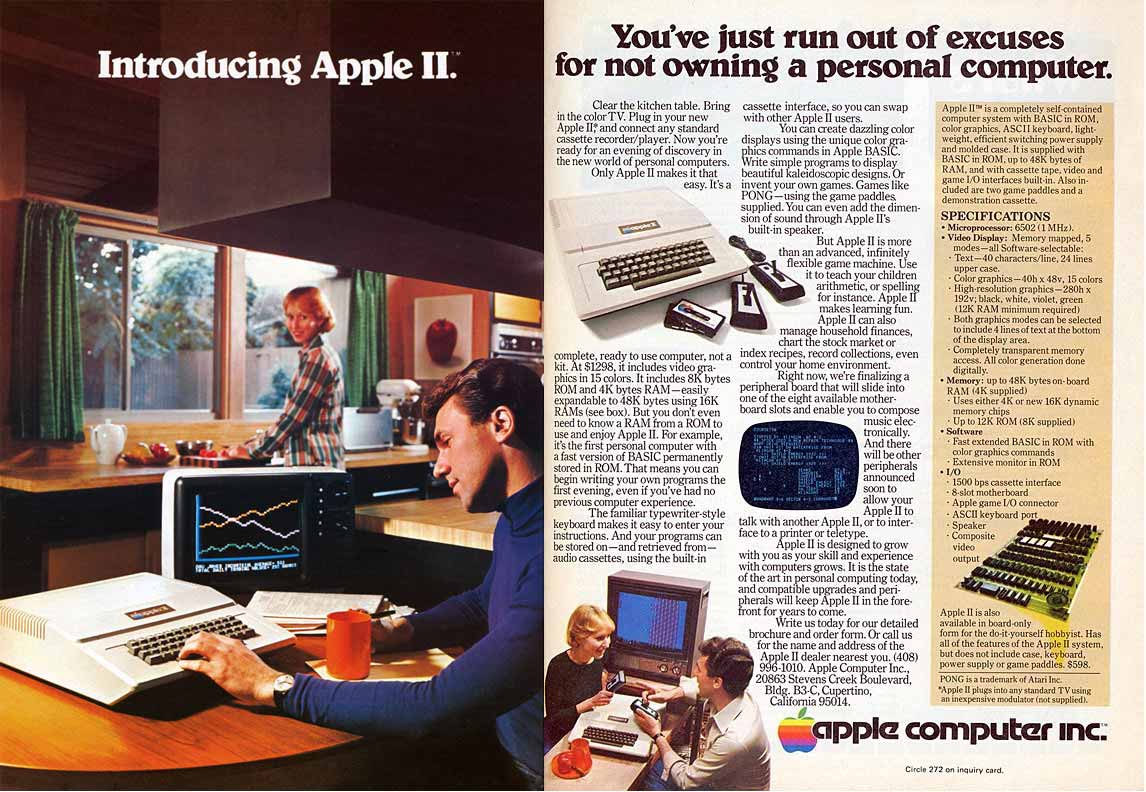
This ad was linked in this blog post. This was interesting to me as I was just telling someone the other day about how "when I was a kid" the line being using a computer and programming it were quite blurry. The most common way to share software for the TRS-80s at my middle school was to exchange listings (printed source code).

So this weirdly ties together with a challenge that I am taking on tomorrow morning. Can I introduce people who have never programmed to programming? Of course, in a way that makes them want to keep programming and to make some apps that they would like for Ubuntu. But first, get started with the whole notion of programming.

They say, "write what you know." So I decided to use my own experience being introduced to programming to introduce others to programming. My first program was a crazy text adventure game.

So I wrote this wiki page to help me walk through the class session for Opportunistic Developer Week. If you want to join, get the time and place here.

I'm hoping that I see what works and doesn't and can ultimately create a kind of story that folks can read to get them introduced to programming concepts. We'll see how it goes.

Tuesday, February 23, 2010

What software will be "Featured"?


Following from mvo's great working getting a Featured Category in the Software Center, the desktop team discussed how to gt that actually populated with apps.

The process for determining what apps will be featured is specified in a blueprint, of course. Please leave comments regarding *the criteria for apps* on the blueprint.
https://blueprints.edge.launchpad.net/ubuntu/+spec/desktop-lucid-featured-applications

If there is an app that you think meets the criteria, please list it on the specification wiki.
https://wiki.ubuntu.com/DesktopTeam/Lucid/FeaturedApps

Next week at the desktop team meeting we will sort through the list and come up with the list of apps to be featured.

Fast User Switching is Back In Lucid!

Thanks Ayatana devs (tedg?) and robert_ancell too. Nice. I guess the root of the problem was the new GDM did not have the API necessary for pre-selecting the user. So Robert spent some time adding the API back to GDM so that Ted could call it from the session menu.

In Karmic with the reworking of the session menu and the switch to the new GDM, we lost the ability to switch to another user in fast way, you had to go back to the GDM greeter and pick the user that you wanted to switch to from a list. This was a regression from Jaunty. Now you can just choose from the list again.

UNE on my Desktop, I likes

I've been running UNE on my desktop with a largish monitor since yesterday morning. Because the Desktop Team now also manages the UNE distro, I figured I should get in the habit of using UNE daily, but I don't use my netbook as much as my desktop during the course of a normal week. Above is the launcher ready for me to get started.

Fortunately, didrocks has tweaked the way UNE and the normal Gnome desktop interact. He set up a system where you can install UNE on a Desktop, or a Desktop on UNE, and then choose the session you want when you log into GDM.

To get UNE running on your desktop in Lucid, I did this:
  1. Used Software Center to install ubuntu-netbook

  2. Restarted my session, it will select a UNE session by default. You can easily switch back to a normal desktop session by selecting Gnome when you log in with GDM.

  3. Went to System -> Administration -> Start Up Programs, and turned off Maximus. If you don't do this all apps on your desktop will automatically go to full screen, which you probably don't want on your desktop.
Here's a couple of apps running, notice the "background" is the launcher.
Here's a full screen app running.

UNE is naturally very space savings. So you can see that all of the window switching and such is handled in this compact area.
Running a desktop session on a UNE installation should work in an inverse manner. I will try that out in the next couple of days.

Monday, February 22, 2010

PPAs in Software Center


PPAs are great. Having a reliable way to get apps to your users, and a reliable way to update them there as well is a huge benefit for the Ubuntu platform.

To get to a PPA you can use Software Sources to add the PPA by using the Add button in the "Other Software" tab. But then how to actually install the app in the PPA?

Well, once again Michael Vogt comes through with a graphical way to manage software from PPAs, right in Software Center! Thanks again mvo for another awesome contribution to the Ubuntu Desktop.

Saturday, February 20, 2010

Learning Python, what I wish they told me

On Thursday I will be running a couple of little sessions to kick off Opportunistic Developer Week. One of these will be for folks who know a little or a lot of programming today, but haven't tried or gotten into Python:
  • Thu 25th Feb 2010 - 16.00 UTC - Ubuntu Opp Dev Week Prep: Intro to Python for programmers - Rick Spencer

The reason I was excited about doing this session, is I remember when I was struggling to figure out how to write programs for Ubuntu. It was sad and frustrating that it was so hard to figure out what languages, libraries, and tools to use, because I could already write programs for Windows (I was working at Microsoft at the time, after all), and I could write web sites. I'll never claim to be anything but an opportunistic programmer, but when I fell in love with Ubuntu as a platform, I could make things happen on other platforms, but just couldn't get going with Ubuntu without lots of struggling. In fact, I essentially quit my job so that I could dedicate myself to solving this problem for Ubuntu. At the time, of course, I never dreamed that I'd actually get to work for Canonical and get paid to work on FOSS software. I thought I'd be lucky to pick up some opportunities to do some training and writing about it, targeted at folks migrating from Windows to Ubuntu.

Before I even quit my job, I tried my hand at contributing to solving this "how do I get started" problem by writing some "chapters". They are here, but there are some wrongnesses in them. Feel free to grab them, read them, modify them, share them, etc... However, beware, there are some wrong things in them that I need to fix. For example, the code samples us one space for indents instead of 4, I didn't understand how underscores worked, or the difference between "==" and "is". I know there are more, but hey, it was a start.

So I went through a couple of the chapters to put together and outline for the session. My goal for the session will basically be to help build a bridge between languages people know now to Python.

Here are my notes so far. I will go through and make code samples and such to get ready and make the session very productive.

Language Concepts
1. Indentation levels
- controls scoping instead of {}, "end", etc...
- standard is to use 4 spaces for each indentation level
- you will get used to it, and probably format you code this way anyway
- at first, many errors will be caused by this

2. Strong Dynamic Typing
- Object and sibclasses, int, float, etc...
- A variable can change type
- don't declare variables with types
- can convert a *variable* to another type, not casting and assigning

3. Types
- Numeric types
- Integer, Long Integer, Float, Complex
- Normal operands and conversion functions float(), int(), etc...
- Can mix and match them in math, will convert to use least "restrictive" type

- Strings
- lots of functions
- not difference between characters and strings
- concatenation with +, +=, etc...
- ",' are the same
- """ can included \n, ",', etc...

- None
- like Null, null, etc...
- None is an object of type NoneType
- undefined variables are not None, just undefined errors

4. Lists and Tuples
- Like an array
- Not types, can contain anything
- Tuples are immutable lists
- how to append, remove, etc...

5. Dictionaries
- Like hash tables
- "foo in bar" syntax
- how to append, remove, etc...

6. Comparisons and branching
- True and False
- if, ==, !=, <=, >=, etc....
- is, is not
- or, and
- else, elif

7. Loops
- for foo in bar:
- while loops
- for i in range(10)

8. Error Handling
- try, except
- Exception type: except Exception
- Exception instance: except Exception instance:

9. comments and doc comments
- #comment is just for folks reading code
- using """ in strategic places == doc comments, pydoc

Modules, Files, Classes
1. file overview
- shbang
- tell bash what interpreter to use
- imports section
- like #include
- import os
- from foo import bar
- code section
- if __name__ == "__main__"
- runs if module is called directly not from another module
- start your program, also useful for writing test apps

2. Code section
- class overview
- class decleration
- define superclass, call super.__init__(self)
- __init__
- member functions, what's this "self" thing?
- member variables
- in a function
- outside of functions
- can define multiple classes in a file
- can define functions variables outside classes

3. OO syntax
- instantiating object
- no private variables, really?
- convention: start with _ for members that should be private and inheritable
- start with __ for members that should be private and not heritable (munging)

Wednesday, February 17, 2010

Featured!

A UDS for Lucid in Dallas, during the default application install session, we discussed adding some kind of "picks" for software center where we could "feature" software that we loved, though it may not be appropriate for installation on the default CD.

Michael Vogt got this featured implemented, and tonight it showed up in Lucid. So far, it is just a container. Michael added the Gimp and Abiword (both safe bets), but now we need to fill it with "featured apps"!

Thanks Michael!

Monday, February 15, 2010

Quickly.Widgets API Design and Documentation

As I've been working of Photobomb and Bughugger, I've been using Quidgets, and extending or tweaking as I needed to do different stuff for the programs.

One thing is, Quidgets need a better name. "Quidgets" was a sort of as a joke. "Quidgets" does have teh advantage of being silly, and maybe keeps folks from taking it too seriously. It's good the name that expresses that. But maybe it's time to boost the configence of the project. So didrocks repackage quidgets as "quickly-widgets", now the namespace is quickly.widgets, quickly.prompts, etc... We'll see how it goes.

Any hoo...

Use
The start of quickly.widgets was focused on one-liners, making it take no more than a line or two to use a quickly.widget. It's good to try to make it easy and fun to write programs. So for instance, with DictionaryGrid, all you need is a dictionary and one line to create the DictionaryGrid, and you are displaying tabular information to users:
 #create a dictionary if you don't already have one
dicts = [{"test?":True,"price":100,"foo count":100,"Key4":"1004"},
{"test?":True,"price":100,"foo count":100,"Key4":"1004"},
{"test?":True,"price":100,"foo count":100,"Key4":"1004"}]
#create the DictionaryGrid
dg = DictionaryGrid(dictionaries=dicts)
It's consuming a quickly-widget, simply by "using" it. A quickly-widget when the underlying PyGtk library is just barely exposed, if at all, and covers up to about 80% of the use cases. In other words, you shouldn't always need to change anything to make it work for your program.

Configure
However, sometimes you have to tweak a quickly.widget for your needs. It's best when most of the essential functionality is provided, but perhaps you have to write a few more lines of code to configure the quickly.widget. This is the "configuring" level of consuming, You can write a few lines of code to set properties and call functions on a quickly.widget. It's a bit more work, but I the code should be easy to write as well. Somtimes the code for configuring a quickly.widget requires knowing or learning about a few parts of the underlying PyGtk library. Sometimes you have to learn about another quickly.widget. For instance, with DictionaryGrid you can configure the types of columns to use:
 #Define column types to use
hints = {"price": StringColumn}
dg = CouchGrid(dictionaries=dicts,keys=keys, type_hints = hints)
In some cases you confige using the underlying PyGtk library directly. For instance to configure a DictionaryGrid to use a different column label, you use the TreeView API like this:
 dg.get_column(0).set_title("Price")
I tried to make the GridFilter be a simple matter of configuring, so you can get special behiavior without the work deriving from a base class:
 blank_filter = BlankFilterCombo()
blank_filter.append("=",custom_equals_function )
blank_filter.append("<>",custom_no_equals_function )
filter_hints = {"status":blank_filter}
filt = GridFilter(grid, filter_hints)
Extend
For some applications there will be way way way too much code just configure an object, so you might end up extending a quickly.widget. For example, I was trying to add offline bug editing for Bughugger. The code was hard to modify starting after only about an hour into writing it because just configuing a DictionryGrid to save it's data in Desktopcouch required too much code strewn about the bughugger code file. So instead, I extended DictionaryGrid to be the new CouchGrid. Doing this required lots of knowledge of the DictionaryGrid widget, DesktopCouch, and PyGtk. However, my requirement was supported and the code is reusable.

I'm hoping to see in time an application library that is easy to use for task at hand, using, configuring, or extending.

Sadly, I have been totally lame about writing documentation for quickly widgets. So I have started doing proper pydoc documentation, adding a use, configure, and extend section to each module. For example, for couch_grid the module documentation now works in pydoc and includes an overview in addition to the reference for each function:

I've gotten dictionary_grid and grid_filter modules done so far, and in trunk.

Thursday, February 11, 2010

CouchGrid Feature Completeness

So what we have here is the new CouchGrid that is really just a DictionaryGrid with an associated Grid filter. You can see Futon behind the test app with one of the records.

So here's the code to create the grid and filters and also persist the data in Desktopcouch:


dicts = [{"ID": 0, "key?": True, "tags": "aaa bbb ccc"},
{"ID": 1, "key?": False, "tags": "bbb ccc ddd"},
{"ID": 2, "key?": True, "tags": "ccc ddd eee"},
{"ID": 3, "key?": False, "tags": "ddd eee fff"},
{"ID": 4, "key?": True, "tags": "eee fff ggg"}]
database_name = "couch_widget_test"
record_type = "couch_grid_filter_test"
grid = CouchGrid(database_name, record_type=record_type, dictionaries=dicts)
grid.show()
filt = GridFilter(grid)
filt.show()
That really is all there is to it. Notice that the CouchGrid infers all of the keys from dictionaries that I passed in. That was a feature which I added back in today as well. I kind of forgot about it yesterday.

So I am assuming that there are all kinds of breakages now. I'll have to write some more test apps and some tests to make sure it is really all working perfectly. In the meantime, I've pushed it to trunk.

Speaking of trunk, I also accepted the first merge proposal in quickly-widgets today. James Tatum modified AsynchTaskProgessbox so that it passes a function that you can use to make the progress box increase in increments instead of just pulse. Nice!

Thanks for that James. He also fixed a bug or two while at it. Hopefully, I didn't bring those back today!

Wednesday, February 10, 2010

Closing the Photobomb Chapter, and Now Back To Quickly Widgets

Last week I stopped blogging because I was hanging with the Ubuntu Platform team at our every-mid cycle "release sprint". I didn't have any free time, too busy, so no time to blog.

However, just because I wasn't blogging, doesn't I haven't been getting some work done on my projects.

Photobomb
First, I did some work on photobomb, but using the new gwibber widget that kenvandine created. As you can see, it's much nicer looking, but also has built in protocol selectors. It's the same widget that Gwibber uses, in fact.


The code is much nicer as well. I deleted all of my code for displaying the widget and replaced it with this:
     poster = widgets.GwibberPosterVBox()
poster.input.connect("submit",self.submitted)
self.add(poster)
self.show_all()
poster.input.set_text(contents)
Just create a poster object and add it to your window or dialog. Sweeeeet! FTW! If you want to add the ability to broadcast to your app, that's it, literally a few lines of code.

Quidgets
Creating Photobomb has been fun, but it's time for me to turn my attention back to Quidgets for a while.

First thing is, Quidgets is no longer "Quidgets". It is now "Quickly Widgets", because it is in the package "quickly-widgets" which is now available in Universe, thanks to didrocks. The launchpad project is still called "Quidgets", but I'll probably change that soon as well.

In any case, I've been spending my extra time the last couple of days porting CouchGrid to Quickly Widgets. And by this I mean CouchGrid is now a subclass of DictionaryGrid and is part of the Quickly Widgets library. Deriiving CouchGrid from DictionaryGrid was a lot of work but it has a huge benefit. All the automagic persistence of CouchGrid, with all the Goodness of DictionaryGrid. So here's the test up showing that CouchGrid now handles all the same column types DictionaryGrid handles.
I haven't tested it with GridFilters yet, but it's good to save something for tomorrow night :) I had to change the internals of DictionaryGrid a bit, so I hope that apps that use it won't break when I update it. I'll test it out a bit first and see.

Next Up
Now that CouchGrid is substantially done, there is *a lot* of work I would like to do on the Quickly Widgets library. However, before I embark on that, I think it's time to document Quickly Widgets really well. I have had some thoughts about how to design the library (and some changes that causes) and also to document it. I'm thinking about doing a "document a day" kind of thing, where I document one part of the Quickly Widgets library each day.

While I was at the sprint Brian Murray demoed Bughugger to the platform team. The #1 request was for an offline mode. Well, seems that CouchGrid is perfect for that, and since a CouchGrid is really just a special DictionaryGrid, it should be pretty easy for me to add that capability. But I think I'll do the documentation first.